SAP Client
Description
Environment entries for a SAP client connection are used to declare the parameters to access a server using Remote FunctionShape Calls(RFC). Therefore, it is necessary to create an RFC destination.
Please note that Orchestra's SAP adapters use the SAPJCO libraries from SAP. Since we can not assume that these libraries exist in every system, the SAP adapter is switched off by default.
If you need to use SAP adapters, the configuration parameter sap.jco.enabled in the configuration group adapter must be switched on, see How to enable SAP adapters.
Purpose of object
It is commonly used to declare the parameters for SAP RFC Caller. This adapter sends data to the SAP system.
Configuration
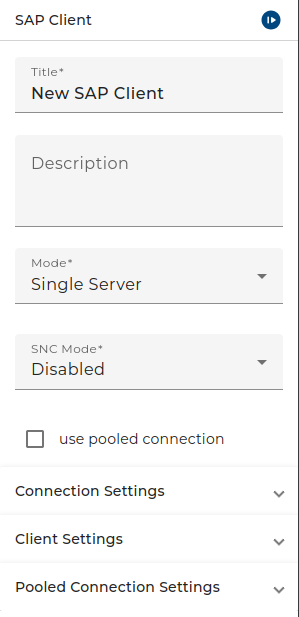 |
|---|
| Base view of the environment Entry SAP Client |
Step by Step
-
Create an Environment entry of type SAP client connection.
-
Choose the connection *mode:
- Single server: Client Server communication with just one server of an SAP system.
- Load Balancing: Redistribution in case of a huge amount of requests to different application server of the SAP system.
-
In case of mode Load Balancing:
- Select Message Server Port: The default TCP port to the message server is 3600, whereby 00 is the number of the system.
- Select Message server host: Name or IP of the message server that is responsible for communication between application servers belonging to an SAP system, e.g. W19tdc00.wdf.sap.corp .
- Select System ID: ID of the SAP system to which you want to connect, e.g. W19 or NSP.
- Select Server Group: Load balancing group or application server to which you want to connect. A load balancing group connects you to the server with the best performance.
-
In case of mode Single server:
- Select Application host: Name of the host to which you want to connect, e.g. main.
- Select System nr: The number of the SAP system on which you want to connect, e.g. 00 or 10.
-
Optional: Select SAP router, used to connect to the message server. This is necessary if you need a router to pass some layers or firewalls. How to quote see here.
-
Select Client: When you log on to an SAP system, you log on to a particular client of that system. Any activities you carry out in the system are always carried out in one client.
-
Enter User and Password to connect to the required destination of the SAP system.
-
Select the language key for the desired language, e.g. for English En or for German de.
-
Click Test: A alert window will appear, which shows whether the test of the connection was successful.
-
If the test was successful, click on Finish.
If you Use pooled connection is enabled, you have to provide these parameters:
-
Capacity: Maximum number of idle connections kept open by the destination. A value of 0 has the effect that there is no connection pooling, i.e. connections will be closed after each request.
-
Peaklimit: Maximum number of active connections that can be created for a destination simultaneously.
-
Expiration time: Time in ms after that the connections hold by the internal pool can be closed.
-
Expiration period: Interval in ms with which the timeout checker thread checks the connections in the pool for expiration.
If you Use pooled connection is disabled, the connections will be closed after each request.